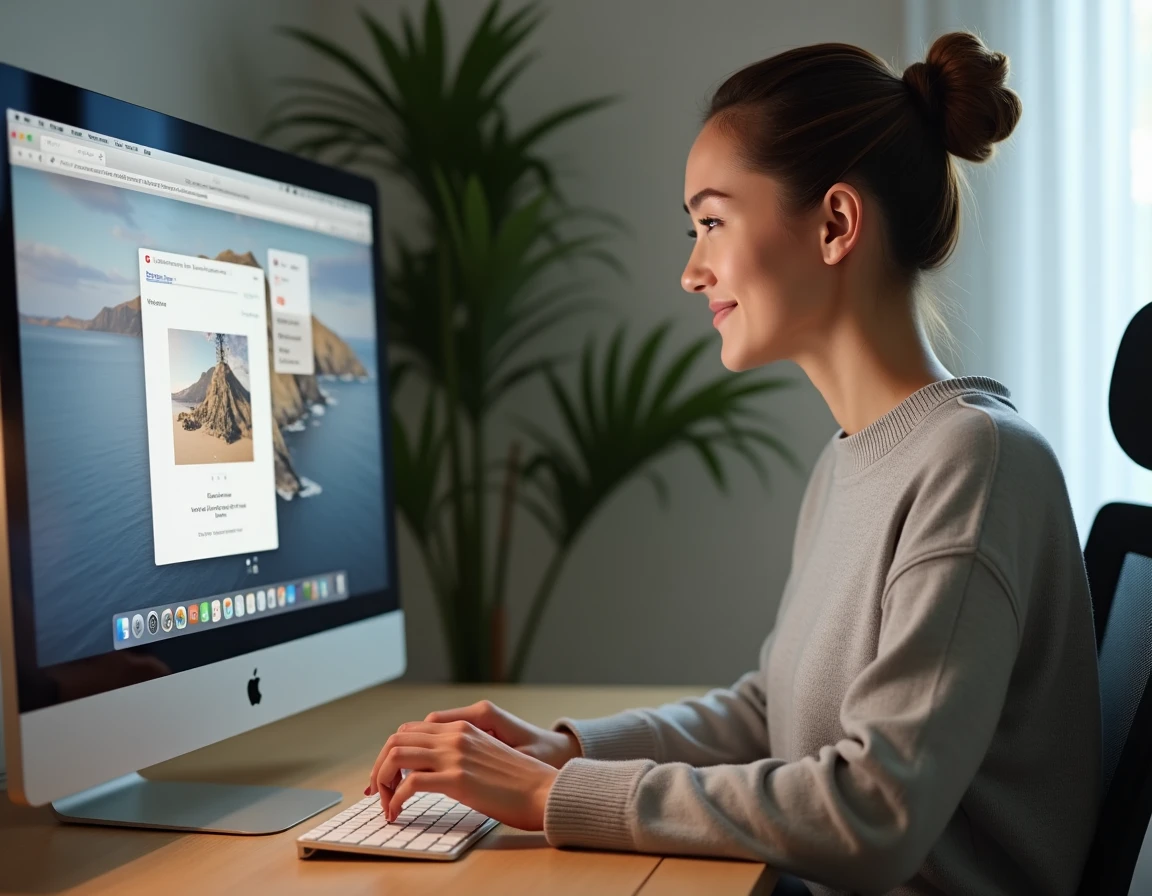
Inserting a photo into an online collaborative pad seems simple, until the moment when the image refuses to display, disappears after a reload, or becomes compressed to the point of being unreadable. The insertion method varies depending on the platform used, the file type, and the storage mode provided by the tool. This guide details the techniques that actually work for adding a photo to a collaborative pad, taking into account recent developments in online editors.
Image Insertion Methods on a Pad: Copying, Uploading, and URL
Collaborative pads do not all handle the addition of photos in the same way. Three main methods coexist, and their availability directly depends on the chosen platform.
| Method | How it Works | Availability | Main Limitation |
|---|---|---|---|
| Local Upload | “Import” or “Insert Image” button in the toolbar | Nearly universal (ONE, Etherpad, Google Docs) | File size often capped |
| Copying from Clipboard (Ctrl+V) | Copying an image or screenshot directly pasted into the editor | Recent cloud suites (Google Workspace, Microsoft 365) since 2023-2024 | Not supported on classic Etherpad pads |
| Insertion via Remote URL | Link to an image hosted on an external server | Some pads (Etherpad with plugins) | Blocked in several educational networks for GDPR reasons |
Directly pasting from the clipboard represents the most notable change in the last two years. Copying an image in the browser or taking a screenshot, then pasting with Ctrl+V into the pad, without going through an “Import” dialog: this option remains poorly documented in public guides, even though it significantly simplifies the process.
To delve deeper into the procedure specific to Framapad and Etherpad tools, a detailed tutorial on photo insertion on Digiterio describes each step with screenshots.
Image Insertion on Mobile: What Classic Tutorials Omit
The majority of online guides describe image insertion from a computer with a local file. Actual usage is different: a growing share of users works from a smartphone or tablet, especially in an educational context.
On educational-oriented collaborative pads like ONE (Collaborative Pad), the mobile interface now offers dedicated “camera” and “library” buttons. These buttons allow users to take a photo directly from the app and insert it into the pad without leaving the editor.
This functionality changes the logic of collaborative work in class or training. A student can photograph a diagram on the board, a paper document, or an object, then integrate it into the shared pad in a matter of seconds. Three points deserve attention on mobile:
- The resolution of the photo taken from the device is often automatically reduced by the pad to limit the weight of the shared document. Checking the rendering after insertion avoids unpleasant surprises during collective review.
- The HEIC format (native format for iPhone photos) is not always recognized by web pads. Converting to JPEG before sending, or configuring the phone to take photos directly in JPEG, removes this blockage.
- On tablets, drag-and-drop from the gallery to the browser works on some recent pads, but not on classic Etherpad. The import button remains the most reliable method.
GDPR Restrictions and Blocking of External Images on School Pads
Inserting an image via URL (pointing to an external host like Imgur or a social network) seemed to be the fastest method. In practice, several educational pads now block the insertion of remote images via URL.
This restriction, adopted by solutions like ONE within the framework of educational networks, responds to GDPR compliance requirements. When a pad loads an image hosted on a third-party server, each participant’s browser sends a request to that server, which can lead to a leak of browsing data (IP address, cookies, user agent) to a provider not contracted by the institution.
The practical consequence is clear: only images uploaded and stored on the institution’s instance are accepted. Teachers or trainers who used links to Google Photos, Flickr, or free hosts must download the image locally and then upload it to the pad.
Bypassing the Blockage Without Breaking the Rules
If the desired image comes from the web, the procedure remains simple: save the image to the device (right-click, “Save image as” on a computer, or long press on mobile), then use the pad’s import button. This additional step ensures that the image is hosted on the institution’s server and not loaded from an external domain.

Accepted Image Formats and Maximum Weight on Major Pads
A failure to insert into a collaborative pad often stems from an unsupported format or a file that is too large. JPEG and PNG formats are accepted by almost all pads. The lighter WebP format is gaining ground but is still rejected by some older versions of Etherpad.
The maximum allowed weight varies by platform. Pads integrated into educational networks generally set a limit per image, while cloud suites (Google Docs, Microsoft 365) apply a global limit to the document.
- Reduce the weight of a photo before insertion: an online tool like Squoosh or TinyPNG compresses the image without visible loss of quality. Reducing a smartphone photo from several megabytes to a few hundred kilobytes is sufficient in most cases.
- Prefer JPEG for photographs and PNG for diagrams or screenshots containing text. PNG preserves the sharpness of contours and characters.
- Avoid BMP or TIFF formats, which are rarely supported by collaborative web editors and unnecessarily large.
Compressing before inserting avoids silent errors: some pads do not display any error message when the file exceeds the limit; the image simply disappears without explanation.
Inserting a photo into a collaborative pad depends as much on the chosen method as on the technical constraints of the platform. Local upload remains the most universal path, copying from the clipboard the fastest on recent tools, and checking the format and weight of the image before any manipulation remains the reflex that avoids most failures.